> For the complete documentation index, see [llms.txt](https://docs.scoreholio.com/llms.txt). Markdown versions of documentation pages are available by appending `.md` to page URLs; this page is available as [Markdown](https://docs.scoreholio.com/track-points-across-events/track-points-across-events/memberships.md).

# Memberships and Payments

Connect payments, configure membership rules and manage members.

There are three parts to memberships: **Season Options** defines levels and offers; **Season Setup → Payments & Membership** defines payment connections and rules; **Membership** holds the member records.

## Setting up Payments

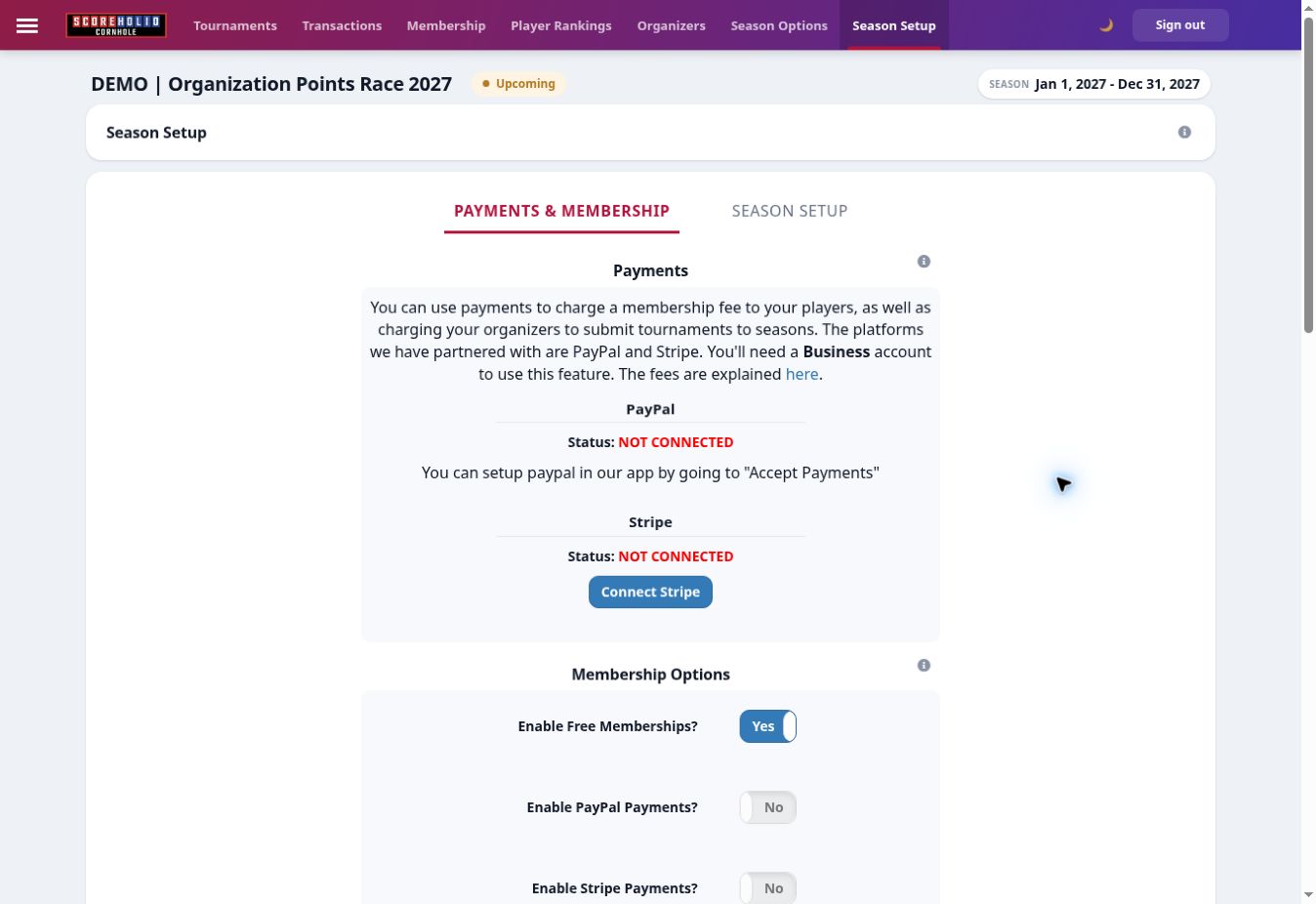
Open **Season Setup** and select **Payments & Membership**. Check the connection status for each payment service before enabling paid offers.

<figure><img src="https://2830358067-files.gitbook.io/~/files/v0/b/gitbook-x-prod.appspot.com/o/spaces%2F-MNzFwCQPtCEArD8DRaL%2Fuploads%2Fgit-blob-9c91072f54b5f8d98310bd2fc5c22bb287d1b2d5%2Fseasons-payments-20261005.jpg?alt=media" alt="Payment connection status in Payments &#x26; Membership." width="700"><figcaption><p>Payment connection status in Payments &#x26; Membership.</p></figcaption></figure>

For PayPal, the current page directs you to set up **Accept Payments** in the app. For Stripe, use **Connect Stripe**. Complete the payment provider's setup and return to verify the connection. Our demo has no connected payment account; purchase checkout is not shown here.

## Membership Options

<figure><img src="https://2830358067-files.gitbook.io/~/files/v0/b/gitbook-x-prod.appspot.com/o/spaces%2F-MNzFwCQPtCEArD8DRaL%2Fuploads%2Fgit-blob-a15c4a8b394935f6b94ccb21663fee57e0844434%2Fseasons-membership-rules-20261005.jpg?alt=media" alt="Free memberships, enabled payment methods, eligibility and default country." width="700"><figcaption><p>Free memberships, enabled payment methods, eligibility and default country.</p></figcaption></figure>

| Setting                          | Effect                                                       |
| -------------------------------- | ------------------------------------------------------------ |
| Enable Free Memberships          | Allow zero-dollar memberships without a paid checkout.       |
| Enable PayPal / Stripe Payments  | Offer the connected payment method.                          |
| Player Rankings for Members Only | Limit ranking eligibility to active members.                 |
| Enforce Membership Start Date    | Exclude tournaments before a player's membership start date. |
| Default Country                  | Set the default country for the membership form.             |

### Choose membership form fields

Expand **Manage Membership Form Fields**. First Name, Last Name and Email are always required. For the other fields, choose **Required**, **Optional** or **Hidden**. Requiring an address field also requires Country.

<figure><img src="https://2830358067-files.gitbook.io/~/files/v0/b/gitbook-x-prod.appspot.com/o/spaces%2F-MNzFwCQPtCEArD8DRaL%2Fuploads%2Fgit-blob-73fbb04ab1e73870d96e7ec9acacbf25581c1d08%2Fseasons-membership-fields-20261005.jpg?alt=media" alt="Choose which contact and address fields players must complete." width="700"><figcaption><p>Choose which contact and address fields players must complete.</p></figcaption></figure>

## Setting up Memberships

In [Season Options](/track-points-across-events/track-points-across-events/season-options.md#set-player-membership-levels), create the membership levels first, then create **Payment Options** that assign those levels. A level's discount and an offer's purchase price are separate settings. Use Access to limit an upgrade offer to members of the starting level.

## Adding Members

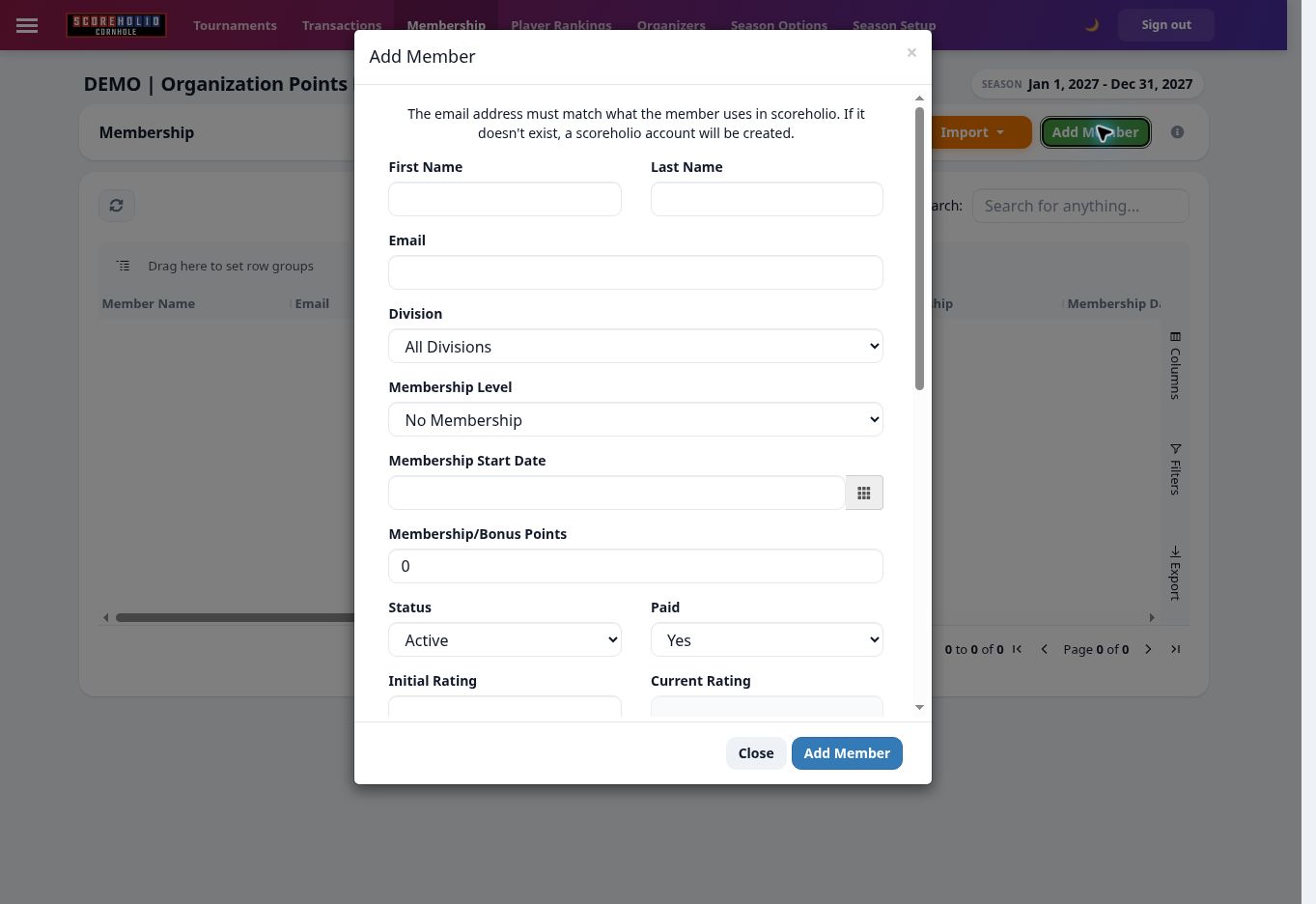
Open **Membership → Add Member**. Enter the player's name and **player-account email**, then choose Division, Membership Level, start date, status, paid status and any Bonus Points.

<figure><img src="https://2830358067-files.gitbook.io/~/files/v0/b/gitbook-x-prod.appspot.com/o/spaces%2F-MNzFwCQPtCEArD8DRaL%2Fuploads%2Fgit-blob-575fa3b49fe83a039c0136d03168690b2d729a8c%2Fseasons-add-member-20261005.jpg?alt=media" alt="Add a member using the email attached to their player account." width="700"><figcaption><p>Add a member using the email attached to their player account.</p></figcaption></figure>

Use the email that matches the player's Scoreholio account. The form explains that an email without an existing player account creates one. Check it carefully before saving. Initial Rating, Tier, Region, Referral and contact/address details are available farther down the form.

## Editing a Player Name

Open the member record and check the correct player before editing. Changes to the Seasons member name appear across that player's Seasons rankings and admin views.

## Membership Points

Use **Bonus Points** in the member record to add membership-related points. Payment Options also have a Bonus Points field; check the offer before assigning it so your published rules are clear.

## Locking a Divison

Choose the member's **Division** when they should appear under a specific division. Keep **All Divisions** when that restriction is not needed. Division is separate from membership Level and rating Tier.

## Mass Importing a Spreadsheet

Open **Import → Import CSV**. Use the sample CSV provided by the import screen rather than guessing column names. Export a backup before making bulk changes; importing edits can overwrite existing membership values.

<figure><img src="https://2830358067-files.gitbook.io/~/files/v0/b/gitbook-x-prod.appspot.com/o/spaces%2F-MNzFwCQPtCEArD8DRaL%2Fuploads%2Fgit-blob-d2c14aefe0255f75da50e4d5f687ddcdcb918f0b%2Fseasons-membership-import-20261005.jpg?alt=media" alt="The current Import menu has CSV and rankings choices." width="700"><figcaption><p>The current Import menu has CSV and rankings choices.</p></figcaption></figure>

## Importing from submitted tournaments

The current menu calls this **Import → Import from Rankings**. Use it after submitted event results have populated rankings, then select the players and membership values to import. The old orange Import Members button has been replaced by this menu.

## Member ratings

Use **Initial Rating** for a player's starting season rating. **Current Rating** reflects the calculated rating. See [Season Ratings](/track-points-across-events/track-points-across-events/season-ratings.md).

## Membership Fees

The existing Seasons fee schedule lists a Scoreholio handling fee of **5%, with a $2 minimum per purchase**, plus the payment provider's fees. Check the current checkout/provider terms before publishing a price or payout estimate. Processor fees vary; see [Stripe pricing](https://stripe.com/pricing) and [PayPal merchant fees](https://www.paypal.com/us/webapps/mpp/merchant-fees).

## Signing up for a Membership

Players join through the season's public **Membership** tab on the web or in the app. Their available offers depend on your membership access, enabled methods, and Payment Option Access/status.

### From the web

Open [Seasons](https://seasons.scoreholio.com/), find the season under **View Seasons**, open its details and choose **Membership**. A private season needs a direct shared link because it is not in the public list.

### From the App

Open Seasons in Scoreholio, choose the season and select **Membership**.

## Sharing your membership tab

Open your public season's Membership tab and share its page link. Check the page as a player before distributing it, including the available offers and required fields.