> For the complete documentation index, see [llms.txt](https://docs.scoreholio.com/llms.txt). Markdown versions of documentation pages are available by appending `.md` to page URLs; this page is available as [Markdown](https://docs.scoreholio.com/track-points-across-events/track-points-across-events/season-options.md).

# Season Options

Configure divisions, event categories, formats, counting pools, points, memberships, and rating tiers for a Scoreholio Season.

After [creating a season](/track-points-across-events/track-points-across-events/getting-started.md), open **Season Options**. Set up the four labels before creating point options: **Division → Category → Type → Pool**. Each submitted result matches a point option with those four choices.

| Setting      | What it controls                                                  | Organization season example                 |
| ------------ | ----------------------------------------------------------------- | ------------------------------------------- |
| Division     | The player ranking to display and sort                            | Social, Competitive, Advanced               |
| Category     | The level of the event                                            | Local, Regional, State                      |
| Type         | The scoring format within an event                                | Tier 1 Bracket, Tier 2 Bracket, Round Robin |
| Pool         | How many of a player's best eligible events count                 | Local: 8; Regional: 5; State: 3             |
| Point option | The actual award for a matching division, category, type and pool | One point per Round Robin win               |

A category describes the event. A pool limits **how many results count** toward the player's season total. Their names do not have to match. This demo uses matching names: State events use the State pool.

{% hint style="info" %}
In a season with individual player rankings, doubles results award points to each player individually. Players can change partners during the season. Turn off **Team Rankings** in Season Setup if the season should not rank fixed teams.
{% endhint %}

<figure><img src="https://2830358067-files.gitbook.io/~/files/v0/b/gitbook-x-prod.appspot.com/o/spaces%2F-MNzFwCQPtCEArD8DRaL%2Fuploads%2Fgit-blob-8b2074c278bf9e38318308e82f2e3a87b5bacbc5%2Fseasons-structure-20261005.jpg?alt=media" alt="Start with divisions, categories, types and pools." width="700"><figcaption><p>Start with divisions, categories, types and pools.</p></figcaption></figure>

## Add divisions, categories and types

Enter a name in each card and select **Add New**. Select an existing name to edit it. Make these labels before creating point options so the options can use them.

For an organization example, use three player divisions (**Social**, **Competitive**, **Advanced**), three event categories (**Local**, **Regional**, **State**), and formats such as **Tier 1 Bracket**, **Tier 2 Bracket**, and **Round Robin**. These are example labels; your organization can rename them. A bracket's tier is a format label here, while a player's membership **Tier** below is a separate rating-based assignment.

## Limit the number of results with pools

In **Pool**, enter the name and **Pool Max**, then select **Add New**. A player's best results in that pool count up to its maximum.

| Pool     | Maximum counting results |
| -------- | -----------------------: |
| Local    |                        8 |
| Regional |                        5 |
| State    |                        3 |

The pool max counts results in the pool; it is not a cap on event entrants or the number of events organizers may run. Decide which pool each category and type should use when adding its point option. For example, a State category may use the State pool.

## Create point options

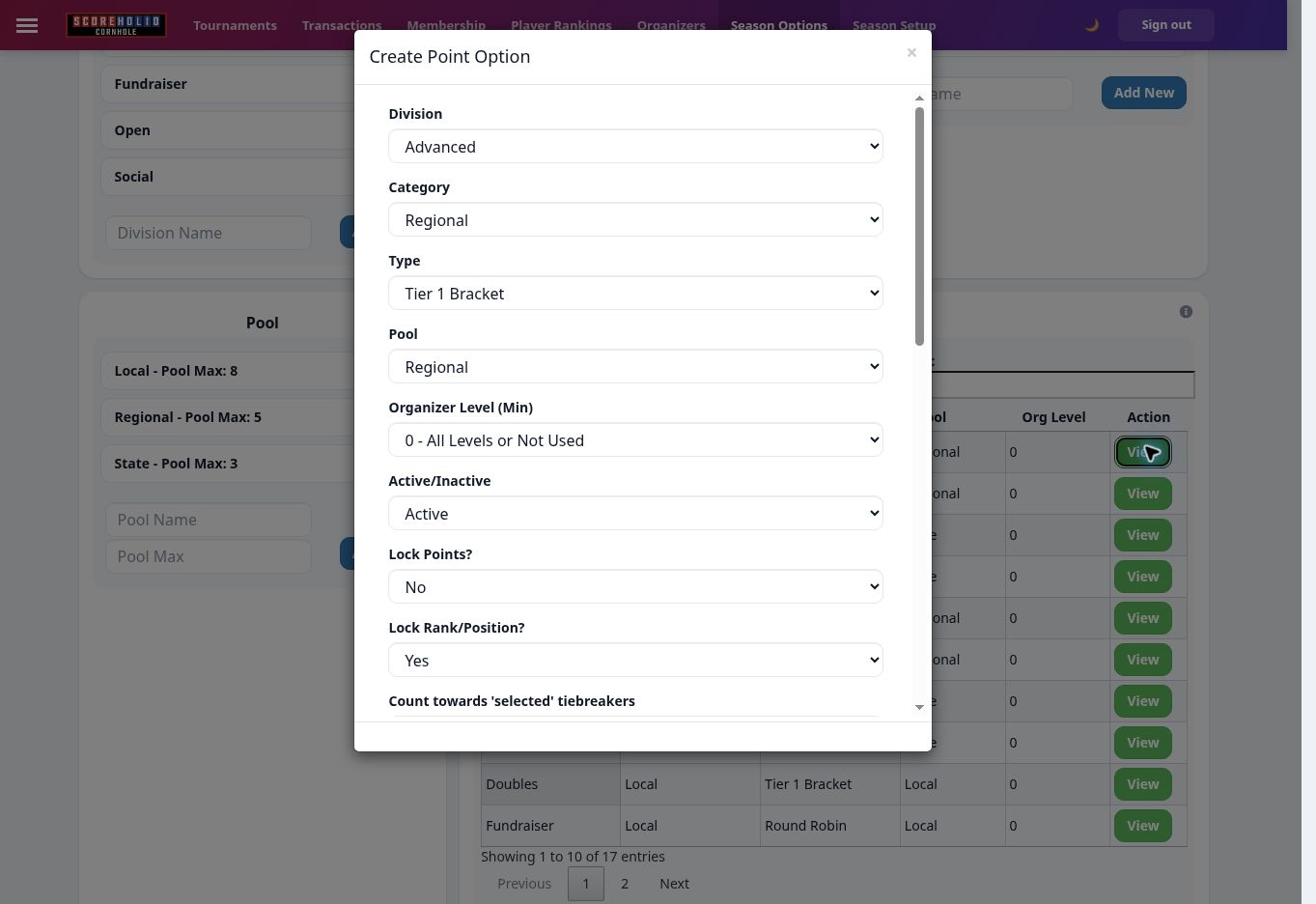
Select **Add New Point Option** and choose a **Division**, **Category**, **Type**, and **Pool**. You can also restrict the minimum organizer level, set the option Active or Inactive, and choose whether to lock points or rank. Create separate options for each combination you intend organizers to submit. An option for Social / Local does not automatically create the Competitive / Local or Advanced / Local options.

<figure><img src="https://2830358067-files.gitbook.io/~/files/v0/b/gitbook-x-prod.appspot.com/o/spaces%2F-MNzFwCQPtCEArD8DRaL%2Fuploads%2Fgit-blob-8c56e0da1723ab3cd8e85903524774ce2583663f%2Fseasons-point-option-20261005.jpg?alt=media" alt="A point option connects four labels and the submission rules." width="700"><figcaption><p>A point option connects four labels and the submission rules.</p></figcaption></figure>

Choose the scoring method:

* **Standings** assigns points by finishing place, including ranges such as 5th–6th and 7th–8th. Enter the values in the **Standing Points** grid.
* **Record (W-L-T-P)** assigns points for a win, loss, tie, and participation. For one point per Round Robin win, set **Win = 1**, **Loss = 0**, **Tie = 0**, and **Participation = 0**.
* **Total Points (RR Only)** is a separate Round Robin scoring choice. Check its intended use before substituting it for record points.

<figure><img src="https://2830358067-files.gitbook.io/~/files/v0/b/gitbook-x-prod.appspot.com/o/spaces%2F-MNzFwCQPtCEArD8DRaL%2Fuploads%2Fgit-blob-498c4f305b1f43d8a859e66395b1a5286241ae14%2Fseasons-standing-points-20261005.jpg?alt=media" alt="Standings points are entered for each finishing-place range." width="700"><figcaption><p>Standings points are entered for each finishing-place range.</p></figcaption></figure>

The example's Social / Local / Round Robin / Local option uses the record method and one point per win. Other division and category combinations require their own point options. Review the option with **View** after saving; verify both the four labels and its scoring grid.

{% hint style="warning" %}
An Active option can be used by eligible event submissions. Draft and review your entire points grid before inviting organizers to submit results.
{% endhint %}

## Set player membership levels

In **Memberships → Levels**, select **Add Level**, give the level a name and a value from 1 to 9, and choose a discount type. The example uses:

| Level  | Value | Example price | Member discount         |
| ------ | ----: | ------------: | ----------------------- |
| Free   |     1 |            $0 | None                    |
| Silver |     2 |           $30 | None                    |
| Gold   |     3 |           $60 | 10% percentage discount |

<figure><img src="https://2830358067-files.gitbook.io/~/files/v0/b/gitbook-x-prod.appspot.com/o/spaces%2F-MNzFwCQPtCEArD8DRaL%2Fuploads%2Fgit-blob-1b6bf0287ccff148bdba75ec3de82ebf91a16982%2Fseasons-membership-level-20261005.jpg?alt=media" alt="Gold has membership value 3 and a 10 percent member discount." width="700"><figcaption><p>Gold has membership value 3 and a 10 percent member discount.</p></figcaption></figure>

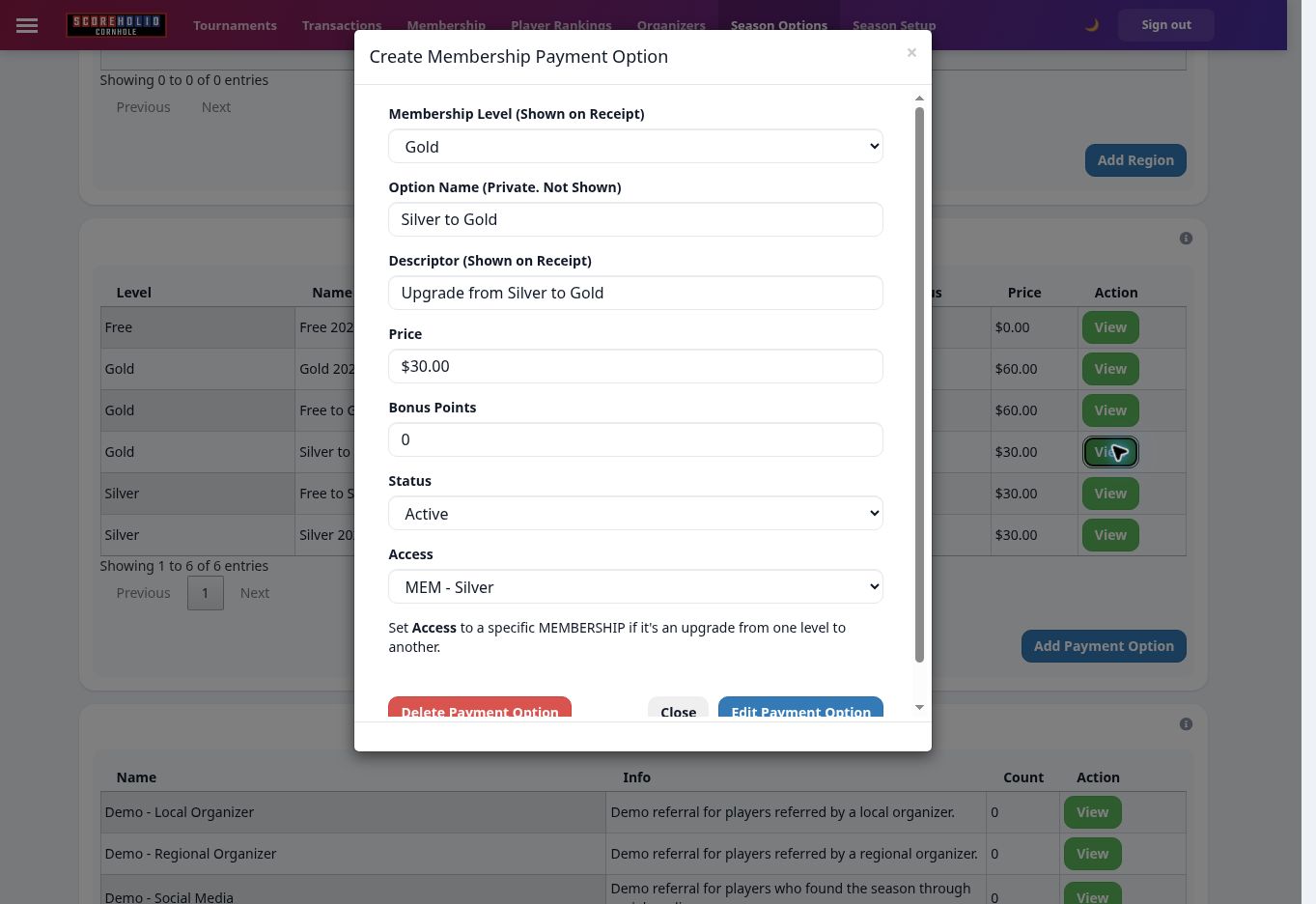
A level and a **Payment Option** are separate. Add the paid prices under **Payment Options**, choosing the corresponding level, private option name, receipt descriptor, price, status and access. **Inactive** options with **Season Admin Only** access can be reviewed without offering a public purchase. Enable them only when payments and season rules are ready. See [Memberships and Payments](/track-points-across-events/track-points-across-events/memberships.md) for payment connections and rules.

### Offer membership upgrades

For an upgrade, choose the destination **Membership Level**, price and receipt descriptor. Set **Access** to the starting membership level. For example, Silver → Gold costs $30 and has Access **MEM – Silver**, while Gold 2027 costs $60 with Access **Everyone**. These are demo prices, not Scoreholio subscription prices.

<figure><img src="https://2830358067-files.gitbook.io/~/files/v0/b/gitbook-x-prod.appspot.com/o/spaces%2F-MNzFwCQPtCEArD8DRaL%2Fuploads%2Fgit-blob-135ea90139d34973b9e1bfed5eb49896036179b3%2Fseasons-membership-upgrade-20261005.jpg?alt=media" alt="Silver members can buy this option to upgrade to Gold." width="700"><figcaption><p>Silver members can buy this option to upgrade to Gold.</p></figcaption></figure>

## Assign rating-based tiers

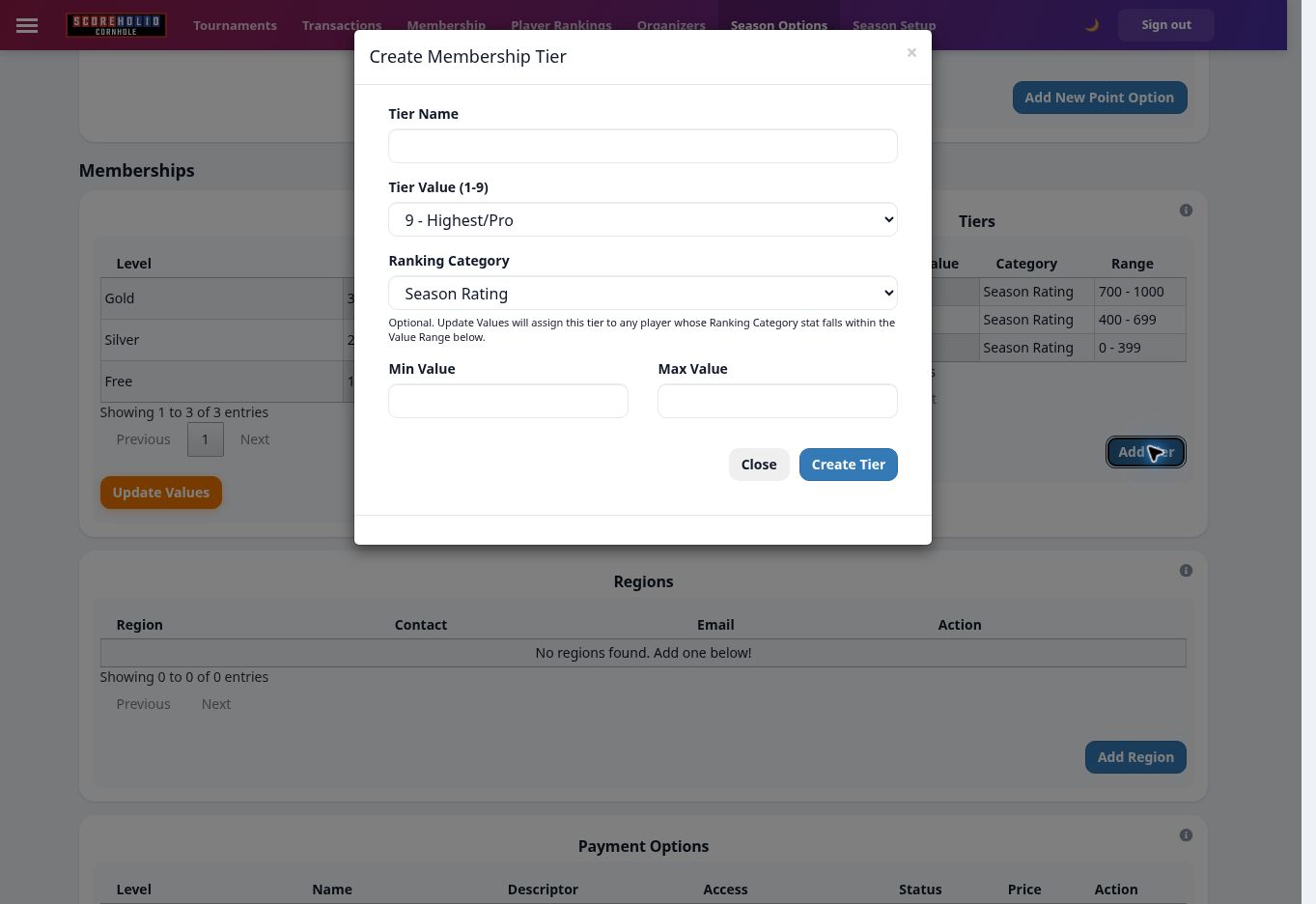
**Tiers** describe the player's level and can be used for preregistration restrictions. Select **Add Tier**, choose a tier value from 1 to 9, select a ranking category and enter its inclusive minimum and maximum. For a three-division example using **Season Rating**:

| Player tier | Tier value | Season Rating range |
| ----------- | ---------: | ------------------: |
| Social      |          3 |               0–399 |
| Competitive |          5 |             400–699 |
| Advanced    |          7 |            700–1000 |

Season Rating uses a 0–1000 scale. A newly rated player may start at 500, so check how that affects the example's Competitive range. Tier labels and division labels can share names, but they are configured separately.

<figure><img src="https://2830358067-files.gitbook.io/~/files/v0/b/gitbook-x-prod.appspot.com/o/spaces%2F-MNzFwCQPtCEArD8DRaL%2Fuploads%2Fgit-blob-33d03ba09fbca1409da9b9acbac6a34141851327%2Fseasons-tier-form-20261005.jpg?alt=media" alt="Choose the rating category and inclusive minimum and maximum for a tier." width="700"><figcaption><p>Choose the rating category and inclusive minimum and maximum for a tier.</p></figcaption></figure>

Creating or changing a tier range does not immediately change existing members. **Update Values** in the **Tiers** card previews the affected players and assigns their highest matching tier when confirmed. Review the preview and the option for members outside all ranges before applying it.

## Division, Level and Tier

| Term             | Purpose                                 | Example                            |
| ---------------- | --------------------------------------- | ---------------------------------- |
| Division         | Event/results grouping                  | Competitive                        |
| Membership Level | Membership benefits and purchase access | Silver                             |
| Tier             | Rating-based player assignment          | Competitive, Season Rating 400–699 |

These settings are separate even when names match. An organizer level is also separate: it controls event-option eligibility and credit offers, while the organizer **role** controls admin access.

## Other cards on this page

### Add regions

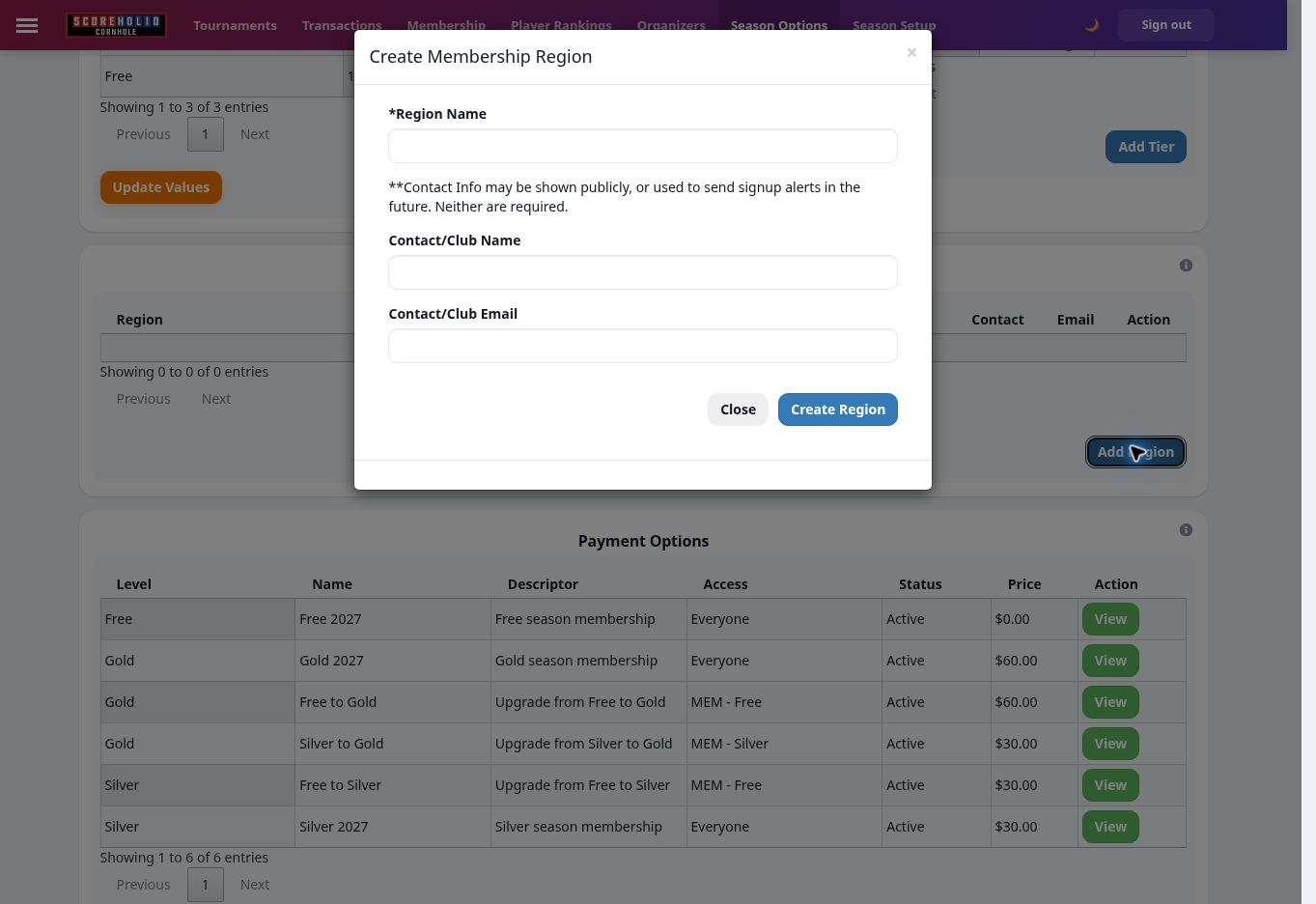
Select **Add Region**, enter a **Region Name**, and optionally enter Contact/Club Name and Contact/Club Email. Select **Create Region**. The form notes that contact information may be shown publicly; use contact details intended for that purpose. Assign a member's Region in their membership record, and enable Region Filtering in Season Setup if your public rankings should use it.

<figure><img src="https://2830358067-files.gitbook.io/~/files/v0/b/gitbook-x-prod.appspot.com/o/spaces%2F-MNzFwCQPtCEArD8DRaL%2Fuploads%2Fgit-blob-64ca2ff34f66473c3ca1363d122ca2069f872f82%2Fseasons-region-20261005.jpg?alt=media" alt="Create a region with optional public contact information." width="700"><figcaption><p>Create a region with optional public contact information.</p></figcaption></figure>

### Track referrals

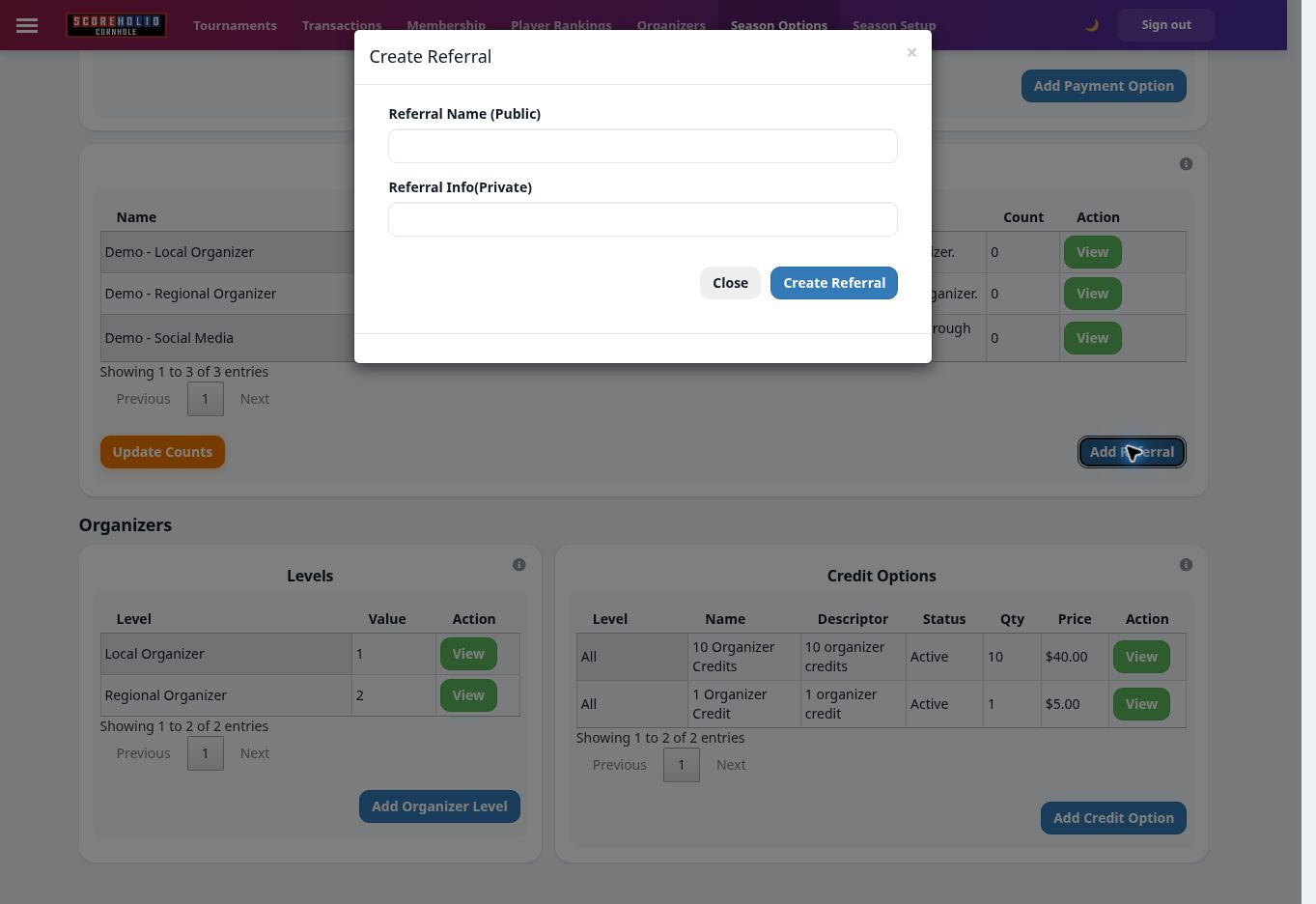
Select **Add Referral**, enter the public **Referral Name** and any private **Referral Info**, then select **Create Referral**. Assign the referral in a member's record. The card shows counts and includes **Update Counts** to refresh them. Use **View** to review an existing referral.

<figure><img src="https://2830358067-files.gitbook.io/~/files/v0/b/gitbook-x-prod.appspot.com/o/spaces%2F-MNzFwCQPtCEArD8DRaL%2Fuploads%2Fgit-blob-f4b2dc32cb11522e99fe21255767291c7083d99d%2Fseasons-referral-20261005.jpg?alt=media" alt="Referral Name is public; Referral Info is private." width="700"><figcaption><p>Referral Name is public; Referral Info is private.</p></figcaption></figure>

### Add organizer levels

Under **Organizers → Levels**, select **Add Organizer Level**, enter a name and a value from **1–9**, then select **Create Level**. The demo has Local Organizer = 1 and Regional Organizer = 2. Assign the level when adding or managing an organizer. Use the point option's minimum organizer level to control eligibility.

<figure><img src="https://2830358067-files.gitbook.io/~/files/v0/b/gitbook-x-prod.appspot.com/o/spaces%2F-MNzFwCQPtCEArD8DRaL%2Fuploads%2Fgit-blob-9124b4b637a3bfc4bd064d6434cbb2c7b612ad7a%2Fseasons-organizer-level-20261005.jpg?alt=media" alt="Organizer levels have a name and a value from 1 to 9." width="700"><figcaption><p>Organizer levels have a name and a value from 1 to 9.</p></figcaption></figure>

Organizer levels and **Credit Options** control event eligibility and credit offers. They are separate from player membership levels and payment options. See [Organizer Credits](/track-points-across-events/track-points-across-events/organizers/organizer-credits.md) to create packages and enable submission charging.

Continue with [Season Setup](/track-points-across-events/track-points-across-events/season-setup.md) for season-wide switches, [Manage Organizers](/track-points-across-events/track-points-across-events/organizers.md) to grant submission access, [Submit a Tournament](/track-points-across-events/track-points-across-events/submitting-a-tournament-to-a-season.md) for the organizer workflow, and [Player Rankings](/track-points-across-events/track-points-across-events/player-rankings.md) to review results.